
BCECE Board Photo and Signature Resizer, Converter and Compressor Online
Using this free online BCECE Board Photo and Signature Resizer you can resize, crop, convert, and compress your photo and signature to the exact BCECE specification. Select BCECE, upload your image, and download a file at 200 x 250 px, in JPEG, between 10 KB and 300 KB. The signature comes out at 300 x 100 px, between 5 KB and 50 KB, with a file name built from your initials.
Uso BCECE Board Photo and Signature Resizer, Converter and Compressor Online
Exam Photo & Document Tool
Drag & drop your image
JPG, PNG, WebP supported
Leer el contenido
What the BCECE Board conducts
The Bihar Combined Entrance Competitive Examination Board was constituted under the BCECE Act of 1995 and runs competitive examinations for admission to professional courses across the medical, engineering and agricultural streams in institutions of the Bihar education department. That scope is wide, and it is why one board covers so many different examination codes.
The stored record follows that structure. Alongside the main BCECE engineering paper there are the undergraduate medical, dental and architecture admissions, the postgraduate medical, dental, physiotherapy and ayurvedic courses, the separate law examinations BCECE[LE] and DECE[LE], and the ITICAT admission for information technology courses. Almost all of those share one photograph size of 200 by 250 pixels and a 300 by 100 pixel signature, with the BCECE board itself offering a slightly smaller 138 by 177 pixel photograph and a 285 by 100 pixel signature. Practically this means one file can serve most of the board's applications, but the two BCECE board rows are the exception worth noticing.
The BCECE notice itself is on bcece.admissions.nic.in. Check the upload section of that document before generating files, since these requirements are revised between intakes and the values stored in this tool follow the recorded specification.
This page sets out the numbers BCECE actually asks for. It is not a general guide to cropping or to the tool interface, because those instructions do not change from one exam to the next and they are written up separately.
What the BCECE form asks you to upload
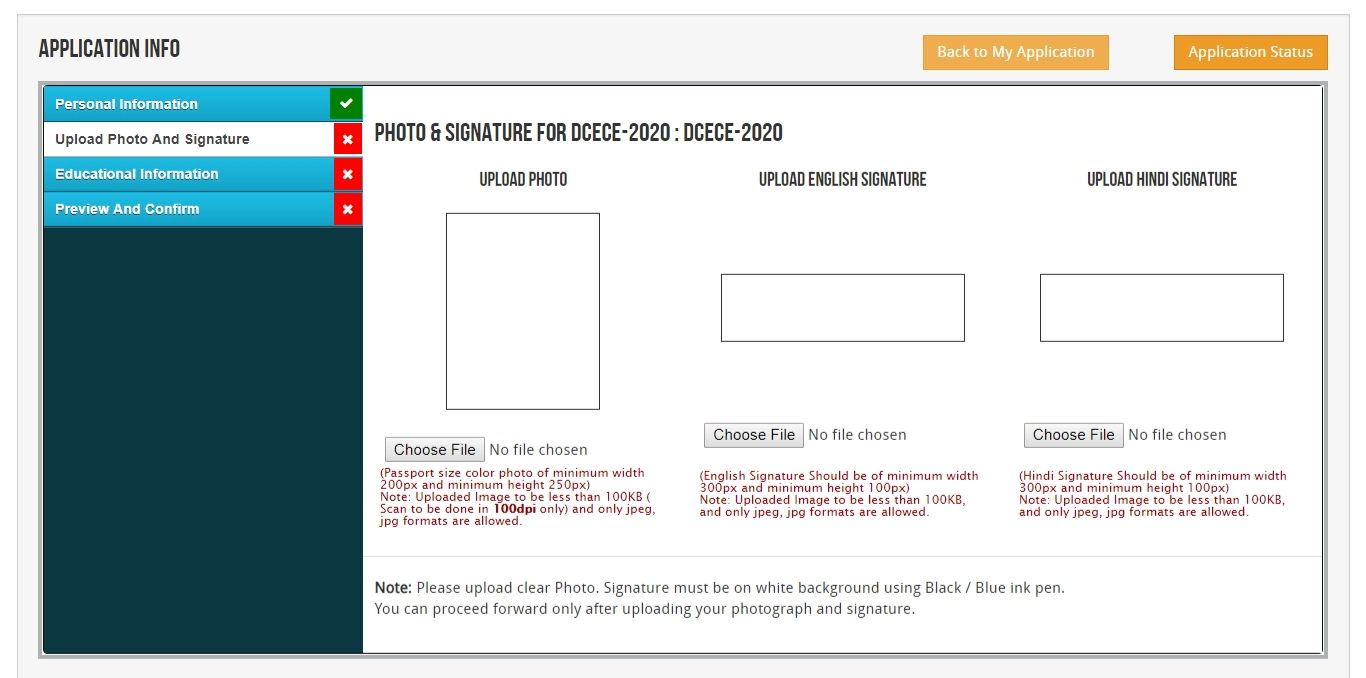
Two images are required, and a failure in either one holds up the application. They are:
- A photograph at 200 x 250 px, between 10 KB and 300 KB.
- A signature at 300 x 100 px, between 5 KB and 50 KB. The form asks for the signature in English and in Hindi, and each one is uploaded as its own file.
A note on these figures: the 10 to 300 KB photograph range, the 5 to 50 KB signature range and the file names further down were reported by applicants filling in the 2026 BCECE form. We could not check them against the Board's own notice, because bceceboard.bihar.gov.in was not reachable when this page was updated. Until this update the tool used 50 to 500 KB for both files. If the notice or the upload screen shows different limits, follow the notice and type its values into the size fields. The other BCECE exam presets in the table (PGAYUSH, PGPAC, PGMAC, PGDAC, UGMAC, UGEAC, PGEAC, BCECE[LE], DECE[LE] and ITICAT) still use the older 50 to 500 KB range.
| Item | Size | Format | Max file size | Min | DPI | Also published as |
|---|---|---|---|---|---|---|
| Photo (BCECE Board) | 200 x 250 | JPEG | 300 KB | 10 KB | 96 | BCECE Board Photo (200x250px) |
| Photo (BCECE Board) | 138 x 177 | JPEG | 300 KB | 10 KB | 96 | BCECE Board Photo (138x177px) |
| Photo (other BCECE exams) | 200 x 250 | JPEG | 500 KB | 50 KB | 96 | PGAYUSH Photo (200x250px); PGPAC Photo (200x250px); PGMAC Photo (200x250px); PGDAC Photo (200x250px); UGMAC Photo (200x250px); UGEAC Photo (200x250px); PGEAC Photo (200x250px); BCECE[LE] Photo (200x250px); DECE[LE] Photo (200x250px); ITICAT Photo (200x250px) |
| Signature (BCECE Board) | 300 x 100 | JPEG | 50 KB | 5 KB | 96 | BCECE Board Signature (Hindi & English) 300x100px |
| Signature (BCECE Board) | 285 x 100 | JPEG | 50 KB | 5 KB | 96 | BCECE Board Signature (Hindi & English) 285x100px |
| Signature (other BCECE exams) | 300 x 100 | JPEG | 500 KB | 50 KB | 96 | PGAYUSH Signature (300x100px); PGPAC Signature (300x100px); PGMAC Signature (300x100px); PGDAC Signature (300x100px); UGMAC Signature (300x100px); UGEAC Signature (300x100px); PGEAC Signature (300x100px); BCECE[LE] Signature (300x100px); DECE[LE] Signature (300x100px); ITICAT Signature (300x100px) |
The BCECE numbers, and why they matter
BCECE is specified directly in pixels, so there is no DPI conversion step and no centimetre measurement to guess at. The photograph preset is 200 x 250 pixels and the tool resizes to exactly that width and height.
BCECE sets a floor as well as a ceiling. The BCECE Board photograph must stay between 10 KB and 300 KB and the signature between 5 KB and 50 KB. The 50 KB signature ceiling is the tight one: a signature scanned with a wide white margin, or saved at high quality, passes 50 KB easily, so crop close to the ink. Falling under the floor only happens if you compress very hard.
The BCECE record offers 12 photograph options and 12 signature options: 200 x 250 px; 138 x 177 px. These come from different notifications and different recruitment streams rather than from one form, so there is no single right answer to which to use. Take the size from the advertisement you are actually applying under, and if it names a size that is not listed here, enter it by hand in the width and height fields.
Naming the BCECE files before upload
Applicants for the 2026 form report that the portal expects each file to be named after the candidate: the first two letters of your name, an underscore, then the file type. A candidate called Prince would upload PR_photo.jpg, PR_ENG_signature.jpg and PR_HINDI_signature.jpg. A candidate called Shivam would use SH in place of PR.
The tool builds this name for you. When BCECE is selected, a File name requirement box appears on the download step, with boxes labelled First name and Last name:
- For the photograph, type the first two letters of your name in the First name box. The download is saved as, for example, PR_photo.jpg.
- For the signature, type the first two letters of your name in the First name box and ENG or HINDI in the Last name box. Process the English and the Hindi signature one after the other, so you get PR_ENG_signature.jpg and PR_HINDI_signature.jpg.
The tool writes the letters you type in capitals. If the notice asks for a different pattern, rename the file after download.
If the BCECE application refuses your file
- When BCECE refuses a file, weight is the first thing to check, because the BCECE Board limits are 300 KB for the photograph and only 50 KB for the signature. Look at the final size on the result card. If it sits above the limit, the source was cropped too loosely: tighten the frame and compress again.
- The signature is judged on its own 300 x 100 px box and is not rescued by a correct photograph. If it is rejected, the usual cause is loose cropping: a signature scanned with a wide white margin carries more weight than the 50 KB allowance and fails even though the writing itself looks right.
- Repeating an identical submission is the most common wasted step here. Compare the values above against the live notification, and if the notification has moved, change one value at a time rather than re-running the whole form.
Images from the original page

Frequently Asked Questions
The crop walkthrough, the face mask guide, the compression settings, and the full list of reasons a portal rejects an otherwise correct photo are written up once, because they apply to every exam. Open the full photo and signature guide.
Preguntas frecuentes
Suggested Tools





Comentarios (0)
Describe el problema que has tenido para que podamos investigarlo y mejorar la herramienta.