
HEIC, HEIF To JPG, JPEG, PNG, GIF Converter
Convert your HEIC, HEIF image to JPG, JPEG, PNG, GIF format within a second in online for free. Just Upload and convert your HEIC, HEIF files.
(Not HEIC or HEIF) Resize, Convert and Compress Your JPG/JPEG, PNG, WEBP, GIF, BMP
使用方法 HEIC, HEIF To JPG, JPEG, PNG, GIF Converter
HEIC/HEIF 変換ツール
100% クライアントサイド • ファイルはブラウザ内に保存されます
ここにHEIC/HEIF形式の写真をドラッグ&ドロップしてください
またはクリックして閲覧(最大100MB)
ファイルを参照コンテンツを読む
Table of Contents
[hide]
HEIC, HEIF To JPG, JPEG, PNG, GIF Converter
Your HEIC, HEIF image is saved in a format that isn't supported by most devices. But don't worry, we can easily and quickly convert them to JPG, JPEG, PNG, or GIF format so that you can use them on any device. Just select your preferred image format, upload your image and in seconds you have a fully-functional image for use in your next project.
Without downloading or installing any app or software, convert your HEIC or HEIF images to JPG, JPEG, PNG, or GIF format easily and faster.
No complicated software is required, no long waits for the file to upload — just a quick and easy conversion right on the platform where your audience spends the most time.

What is HEIC, HEIF image format?
The HEIC (High Efficiency Image Container), HEIF (High-Efficiency Image Format) is a new image file format that Apple introduced in iOS 11. It’s a more compact format than JPG, JPEG/JPG, which means it takes up less space on your device and can speed up your photos when downloading or uploading.
It makes photos smaller and takes fewer resources to store and transfer. With HEIF, you can save space by compressing images without reducing quality.
But to use HEIC, you need an iPhone 8 or later, an iPad Pro, or an Apple Watch Series 3. You can also convert your existing images to the format using Newisty HEIC, HEIF Converter.
You can easily convert your HEIC, and HEIF photos to JPG, JPEG, PNG, and GIF formats online for free. Just upload your file and our HEIC, HEIF Online Converter will convert your image into JPG, JPEG, png, or gif format within seconds. This makes it easy to share your photos on social media, or save them for editing and sharing later.
Can we convert HEIC or HEIF images to JPG, JPEG, PNG, or GIF format online?
Yes, you can easily convert your HEIC or HEIF image to JPG, JPEG, PNG, or GIF format online. It's so easy to do. No hassle of downloading or installing any kind of app or software. Just upload your HEIC or HEIF image, our HEIC, HEIF Online Converter will automatically convert your image to the format that you need. This saves you time and money.
Worried about converting your HEIC, HEIF image to JPG, JPEG, PNG, or GIF format?
Never worry about converting your HEIC, HEIF image to JPG, JPEG, PNG, or GIF format again. We provide professional HEIC, HEIF image to JPG, JPEG, PNG, and GIF conversion tool in online for free. Just upload your photos, and our system will automatically turn them into the format you need. It's that simple!
How To convert HEIC, HEIF To JPG, JPEG, PNG, GIF format
Now you can convert your iPhone, iPad, iPod or other device's HEIC and HEIF image files To JPG, JPEG, PNG, or GIF image format in Android, Windows 10, Mac or any device and OS.
- Select your preferred image format to convert
- Upload your photos (you can upload batch files or multiple files at once, with no limitation)
- Within a second your image will be converted then you will find two button
- The first button is for downloading the converted photo and second button is for previewing converted photo
How to take JPEG photos instead of HEIC, HEIF by changing camera settings on iPhone, iPad, or iPod
Apple has a bit of a problem where they take high-efficiency HEIC or HEIF photos instead of JPEG. That's why you get all these errors and things when you're trying to attach them to emails and share them with non-mac, non-apple users.
In this article, I'm going to teach you how your phone can take JPEG photos instead of HEIC or HEIF photos by changing the camera setting on iPhone, iPad, or iPod.
Take JPEG photo and Stop taking HEIC or HEIF image on iPhone, iPad or iPod.

Step 1:
Go to your device setting

Step 2:
From setting go Camera option

Step 3:
On the Camera option, you can find the Formats option, click on the format option.

Step 4:
You can see in the format option's Camera Capture menu High Efficiency option is selected. Because of this High Efficiency option your iPhone, iPad, and iPod take HEIC, HEIF Photo.
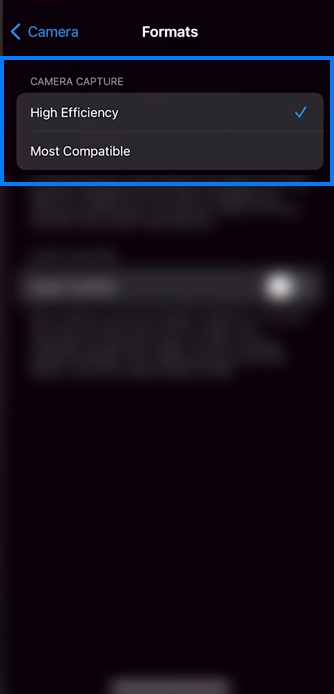
Step 5:
To get JPEG photos instead of HEIC, HEIF Photo Select Most Compatible from Formats menu.

After following these steps above and changing the camera setting, you will get rid of HEIC or HEIF image.
Why Newisty HEIC, HEIF To JPG, JPEG, PNG, GIF Converter
- No need to download or install any app or software, everything is in online.
- Supported by every device, operating system, and browser.
- Easy to use and fast output.
- Multiple HEIC or HEIF image conversion at once.
- No Limit
コメント (0)
発生した問題について詳しくご説明ください。調査を行い、ツールの改善に役立てたいと思います。