
New Zealand PSC and Visa Photo Resizer, Compressor and Converter
New Zealand PSC and Visa Photo dimensions between 900 x 1200 pixels and 2250 x 3000 pixels, photo format jpg, jpeg and photo files size must be between 500KB and 3 MB. Crop, Resize, Convert and Compress New Zealand PSC and Visa Photo.
사용법 New Zealand PSC and Visa Photo Resizer, Compressor and Converter
Exam Photo & Document Tool
Drag & drop your image
JPG, PNG, WebP supported
내용 읽기
Table of Contents
[hide]
New Zealand PSC and Visa Photo Compressor
New Zealand PSC and Visa Photo Compressor is an image Compressor tool where you can compress your New Zealand PSC and Visa Photo size 500 KB to 3 MB, crop, add name and date, resize 900-2250 x 1200-3000px (width) x (height), and convert your photo in JPG/JPEG format. And finally, your photo will be renamed Photograph.jpg. Just Drag and Drop your photo then it's our duty to prepare your image, according to New Zealand PSC and Visa Photo guidelines.
This tool helps you to prepare your photo by converting, compressing, and resizing your photo automatically according to New Zealand PSC and Visa guidelines. And finally, save your photo on your device. Then upload your photo in the New Zealand PSC and Visa application form without any invalid size or dimension error.
New Zealand PSC and Visa Photo Compressor
New Zealand PSC and Visa Photo Compressor will compress, resize and convert your New Zealand PSC and Visa photograph without any problem and according to New Zealand PSC and Visa guidelines. Just drag and drop your photo and signature and relax.
Error in New Zealand PSC and Visa Photo Uploading
Getting errors for (invalid image dimensions / invalid image size) photo or signature dimension or size in the New Zealand PSC and Visa online application form. Don't Worry. We will help you to solve this problem. We will convert, compress and resize your photo/image and signature according to the required format and size (Photo size 900-2250 x 1200-3000px (width) x (height), 500KB to 3MB, JPG / JPEG format). Just Select Your Dream exam's image type, and we will set your targeted image dimension, Upload Your Image, Boooom!! Your Image is ready to upload without any error.
New Zealand PSC and Visa Photo Dimension 2023
You can use this tool by using a mobile or computer.
There are multiple sizes for photo, signature, and support document, try one to another option for any kind of failed / error upload
Reminder:
New Zealand PSC and Visa Photo Size
New Zealand PSC and Visa Photo Size 2023 |
|||||
|---|---|---|---|---|---|
| Exam Name | Type of Document | Image Height | Image Width | Minimum Size | Maximum Size |
| New Zealand PSC and Visa Online | Photo | 900 - 2250px | 1200 - 3000px | 500KB | 3MB |
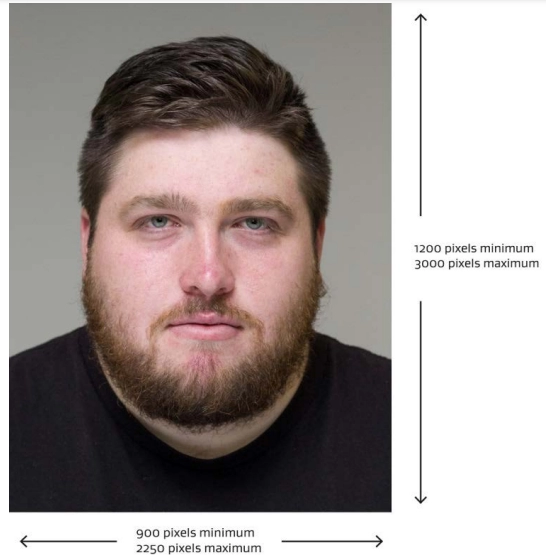
New Zealand PSC and Visa Photo size
- New Zealand PSC and Visa Photo Dimension is 900 - 2250 x 1200 - 3000px (width x height)
- New Zealand PSC and Visa Photo Format is JPG / JPEG
- New Zealand PSC and Visa Photo size is 500 KB to 3 MB
New Zealand PSC and Visa Photo Guidelines |
|---|
| The photograph must be in JPEG/JPG format only. |
| The photo must be a color photo |
| The photo color must be sRGB (to match the colors that most video monitors and printers reproduce) |
| The photo file size must be between 500KB and 3 MB |
| The photo must have dimensions between 900 x 1200 pixels and 2250 x 3000 pixels |
TECHNICAL REQUIREMENTS FOR PROFESSIONAL PHOTOGRAPHERS
1. Adjust camera settings
- set the camera to take color photos
- set the camera to save images as JPG (or JPEG) files
- set the color to sRGB (to match the colors that most video monitors and printers reproduce)
- change the camera’s color balance to adapt to artificial lighting, and avoid an unnatural skin color in the picture
– use either:
- flash
- tungsten
- daylight
- The photo file size must be between 500KB and 3 MB
- The photo must have dimensions between 900 x 1200 pixels and 2250 x 3000 pixels
2. Position the person and camera correctly
- The image must be taken in portrait.
- The person must stand:
- in front of a plain, light-colored (not white) background
- 1 to 1.5 meters in front of the background, to lesson shadow
- 1 to 1.5 meters away from the camera, to keep facial features clear.
- For the best picture, use a tripod and set it so the camera is level with the person’s eyes.
3. Stop background shadows, lighting, and red-eye
- To stop shadows and red-eye, try some or all of the following:
- take the photo in an area with a low, bright-white ceiling and a mounted flash that rotates (to bounce light off the ceiling)
- use the digital camera’s flash sync cable if it has one, and put the flash to the side of the camera
- turn off the flash and use bright overhead lighting
- shine a separation light on low power about 0.5 meters out from the background at the subject's lower to mid-back level (to cancel out any shadows).
4. Get prepared
- The person in the photo must:
- make sure no headwear covers their face
- not wear bold clothing patterns
- be the only face in the photo
- face the camera with eyes open
- must look directly at the lens.
5. Position the head and take the photo
Before you take the photo, make sure the person’s head is positioned to match this example image:
- the person’s face is in the center, of the frame
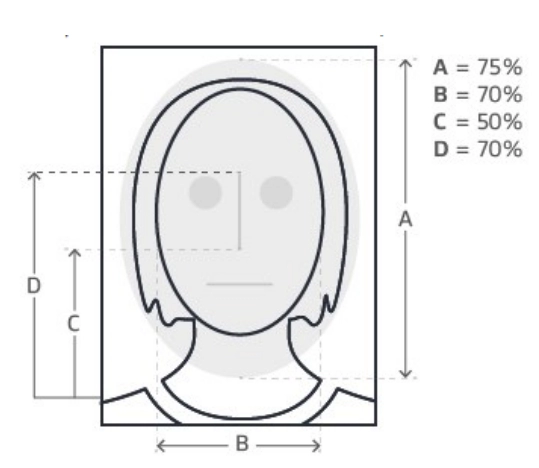
- you can imagine a center line going from the bottom of the image through the center of the mouth and nose to the top of the image
- the length of the head fills 75% of the frame (see A)
- the width of the head fills 70% of the frame with equal space on both sides (see B)
- the eyes are positioned in the top half of the frame, between points C and D
- there is a light background showing around the entire head
If needed, move the camera tripod or use the camera’s zoom to frame the picture correctly. Use optical zoom (not digital) for better quality.
5. Check the image
After taking the photo, check the image to make sure it meets all the requirements.
If the image is too dark or too light:
- check the exposure setting on your camera
- to lower the power of the flash or use a light diffuser.
6. Image size of photos for online applications
Save the image as a jpeg and make sure the file size is between 500kb and 3MB and has dimensions between 900 x 1200 pixels and 2250 x 3000 pixels.
New Zealand PSC and Visa FAQs and Short Info's
What are the Photo dimensions of New Zealand PSC and Visa 2023?
New Zealand PSC and Visa Photo dimensions between 900 x 1200 pixels and 2250 x 3000 pixels - [Width x Height]
New Zealand PSC and Visa Photo format
New Zealand PSC and Visa Photo should be in .JPG or .JPEG format
New Zealand PSC and Visa Photo file-size
New Zealand PSC and Visa Photo file size must be between 500KB and 3 MB
New Zealand PSC and Visa Photo Color
New Zealand PSC and Visa Photo Should be sRGB color photographs.
New Zealand PSC and Visa 2023 Useful links
New Zealand PSC and Visa acceptable Photo Guidelines (instructions-for-taking-acceptable-photos.pdf)
Frequently Asked Questions
자주 묻는 질문
Suggested Tools



댓글 (0)
발생한 문제를 자세히 설명해 주시면, 저희가 이를 조사하고 도구를 개선할 수 있습니다.