
TNeGA Photo Compressor (TNe-sevai), Converter and Resizer
Using this free online TNeGA Photo Compressor, Converter and Resizer you can resize, crop, convert, and compress your photo to the exact TNeGA specification. Select TNeGA, upload your image, and download a file at 3.5 x 4.5 cm, in JPEG, under 500 KB.
ਵਰਤੋਂ TNeGA Photo Compressor (TNe-sevai), Converter and Resizer
Exam Photo & Document Tool
Drag & drop your image
JPG, PNG, WebP supported
ਸਮੱਗਰੀ ਪੜ੍ਹੋ
What the e-Sevai platform is
The Tamil Nadu e-Governance Agency runs the e-Sevai platform on which most state certificates are applied for: community, nativity, income, residence, first graduate, legal heir and unemployment certificates among roughly a hundred services. A citizen can apply at one of the several thousand e-Sevai centres or directly on the portal, and every application carries a photograph along with scanned supporting documents, which is why this page handles both a portrait and a document conversion path.
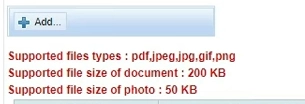
The photograph the platform wants is a passport style frame of 3.5 by 4.5 centimetres at 200 DPI, kept under 50 KB and supplied in JPG, JPEG, PNG or GIF, while the supporting documents are attached as PDF files of no more than 200 KB each. The preset stored in this tool sits at a far more generous 500 KB ceiling with a 50 KB floor, which is the opposite of what the portal enforces: here the practical limit is the low one, not the high one. Export in JPEG and stop well before the tool's maximum. If a certificate scan keeps being refused, it is usually the size of the PDF rather than the photograph that is at fault.
Notices for TNeGA are published at tnesevai.tn.gov.in. Read the upload instructions from the notice on that site, not from a coaching summary or an older application, because the portal validates against the specification that was current when the form was built.
This page sets out the numbers TNeGA actually asks for. It is not a general guide to cropping or to the tool interface, because those instructions do not change from one exam to the next and they are written up separately.
What the TNeGA form asks you to upload
There is a single file to prepare.
- A photograph at 3.5 x 4.5 cm, no heavier than 500 KB and no lighter than 50 KB.
Stored preset versus the portal. The preset here allows 500 KB, but the e-Sevai portal caps the photograph at 50 KB and each supporting PDF at 200 KB. The 50 KB figure, not the 500 KB ceiling, is the one the form enforces.
| Item | Size | Unit | Format | Max file size | Min | DPI |
|---|---|---|---|---|---|---|
| Photo | 3.5 x 4.5 | cm | JPEG | 500 KB | 50 KB | 200 |
The TNeGA numbers, and why they matter
Notice that the TNeGA figures are measurements in centimetres, not pixels. At 200 DPI a 3.5 by 4.5 centimetre frame is a specific pixel count, and the tool derives it rather than guessing. A photo that is the right number of pixels but the wrong DPI reads as the wrong size to a portal that checks both.
There are two limits to satisfy for TNeGA, not one. The upper bound on the photograph is 500 KB and the lower bound is 50 KB. Compression that overshoots is easy to fix by lowering quality again, but a file under the floor cannot be fixed by compressing further, it needs a larger source image.
If the TNeGA application refuses your file
- When TNeGA refuses a file, weight is the first thing to check, because 500 KB leaves limited room. Look at the final size on the result card. If it sits above the limit, the source was cropped too loosely: tighten the frame and compress again.
- If the same file is refused twice with identical settings, stop retrying and re-read the notification. Requirements do get revised by corrigendum, and the numbers stored in this tool reflect the specification as recorded.
Images from the original page
Frequently Asked Questions
Cropping to a face, choosing a compression level, and the reasons a correctly sized photograph still gets refused do not vary by exam, so those are covered in one place rather than repeated here.
ਅਕਸਰ ਪੁੱਛੇ ਜਾਣ ਵਾਲੇ ਸਵਾਲ
ਟਿੱਪਣੀਆਂ (3)
Good
ਤੁਸੀਂ ਜਿਸ ਸਮੱਸਿਆ ਦਾ ਸਾਹਮਣਾ ਕੀਤਾ, ਉਸਦਾ ਵੇਰਵਾ ਦਿਓ ਤਾਂ ਜੋ ਅਸੀਂ ਇਸਦੀ ਜਾਂਚ ਕਰਕੇ ਟੂਲ ਨੂੰ ਸੁਧਾਰ ਸਕੀਏ।