
Text Finder and Replacer
Text Find and Replace searches a block of text and replaces every match. Use literal search or regex, case-sensitive and whole-word options, and copy the result.
Zastosowanie Text Finder and Replacer
Przeczytaj treść
What the find and replace tool does
This page searches a block of text for a word or pattern and replaces every match with new text. It shows a live match count, then writes the result to a separate output panel. The original input stays in place so you can compare or try another replacement.
It runs in the browser. The text is not uploaded, and the page does not need an account. You can copy the result or send it back to the input panel for another pass.
Literal search
With Use Regex off, the find field is treated as literal text. Characters that have a special meaning in a regular expression, such as a dot, a bracket or a plus sign, are escaped automatically. Searching for a file name or a sentence with punctuation therefore works without learning regex syntax.
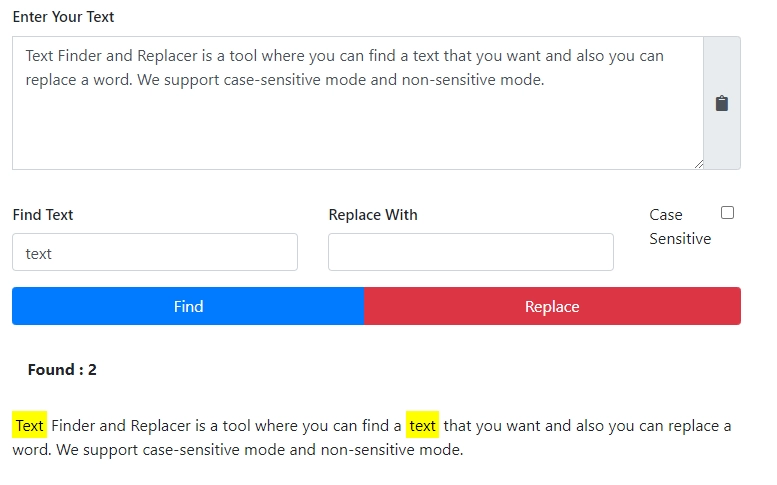
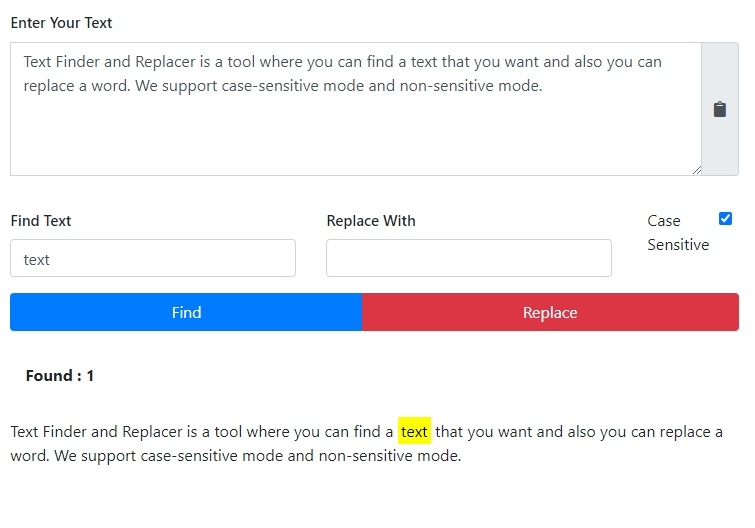
The search is case-insensitive by default. Enable Case Sensitive when the capitalisation matters, for example when replacing a proper name but not a common word.
Enable Whole Word Only to match a complete word rather than part of a longer one. This prevents a search for a short word from changing the same letters inside a larger word.
Regular expression search
With Use Regex on, the find field is compiled as a JavaScript regular expression with the global flag. You can use character classes, anchors, alternation and capture groups. The page reports an invalid expression instead of running a broken search.
Capture groups are useful for reordering text. A pattern with groups can be replaced by a string that references those groups, so a date written in one order can be rewritten in another. Test on a small sample first; a broad pattern can match more than you expect.
Whole Word Only still wraps the pattern in word boundaries when it is enabled. That can be useful for a simple pattern and unhelpful for one that already includes anchors; check the match count before replacing everything.
Match count and output
The badge and the Matches counter update as you type the find term. They show how many matches the current options would replace. A zero count usually means a typo, a case mismatch or a regex that does not fit the text.
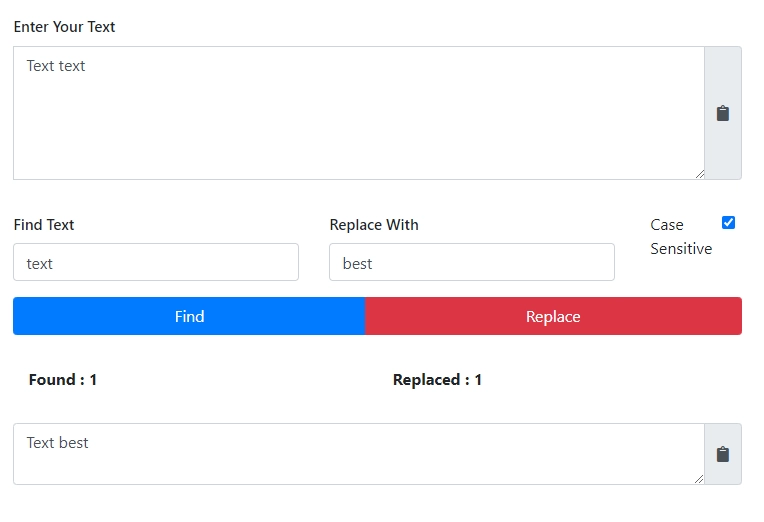
After Replace All, the output panel shows the new text, its character and word counts, and the number of replacements. The input panel is unchanged, so you can adjust the search and run again from the same source.
Use Copy to take the output elsewhere, or Use as Input to make the result the new source for a second pass. Reset clears the fields and returns the page to its starting state.
A safe workflow
Paste the source, search for a small sample first, and check the match count. Replace one category at a time rather than stacking several broad patterns in a single pass. Keep the original text in another document until the result has been reviewed.
For code or markup, be careful with patterns that match whitespace or tags. A regex that is too broad can remove structure as well as content. For a simple word swap, literal mode is safer.
How the tool looks
The screenshots show the input and result panels, the find and replace fields and the options. They are illustrative; the text in the examples is not part of your data.

Limits
The tool works on plain text, not on a live web page, a PDF layout or a spreadsheet file. It does not preserve rich formatting; copying formatted content may bring plain text only. It also does not offer a download button, so use Copy to move the result.
Very large documents can make the live match count slow. If the page lags, paste a smaller section or turn off regex while you edit the text. There is no server-side history and no undo beyond the Reset button and your own saved copy.
Useful regex patterns
A pattern that matches one or more digits is useful for stripping numbers or finding IDs. A whitespace pattern can collapse repeated spaces, tabs and line breaks into a single separator. Anchors let you match the start or end of a line rather than the same characters in the middle.
Alternation lets one search match either of two spellings. A capture group lets you keep part of the match and reorder it in the replacement. Start with a narrow pattern, check the live match count and widen it only when the count matches what you expect.
Replacing in code and markup
Be careful with patterns that match angle brackets, quotes or whitespace in code. A broad replacement can remove indentation, merge lines or change a tag name inside a string. Use literal mode for a single identifier and regex only when the variation is real.
HTML and XML are not regular languages in the general case; a regex is fine for a simple attribute swap but unreliable for nested structures. For complex markup, use a parser or an editor with structural search.
Cleaning a document in passes
Replace one class of problem at a time: first double spaces, then a repeated punctuation pattern, then a list of names. After each pass, use the result as the new input and check the match count for the next pattern. This is easier to review than one huge combined expression.
Keep a copy of the original before the first pass. The output panel replaces its previous contents on each run, and there is no server-side history to recover an earlier version.
Checking before replacing
Type the find term and watch the badge before pressing Replace All. If the count is much higher than expected, the pattern is too broad or a case option is wrong. Test on a short excerpt first, then apply the same settings to the full document.
When to use another tool
A word processor is better when the formatting must survive, because it can replace text while keeping bold, links and tables. An IDE is better for code because it understands the language and can search by symbol. A database tool is better for changing many rows under a condition.
Use this page for plain text where you want to see the match count and the result before copying it somewhere else.
Frequently Asked Questions
Najczęściej zadawane pytania
Suggested Tools

Komentarze (0)
Opisz napotkaną trudność, abyśmy mogli zbadać sprawę i ulepszyć to narzędzie.