Exam Photo Tools Công cụ đã được cập nhật 3 ngày trước

IPU CET Photo and Signature Converter, Resizer, Compressor Online

IPU CET Photo and Signature Resizer crops, converts and compresses an image to the stored IPU CET presets. Check the current notice before uploading.

IPU CET Photo Signature Resize Convert Image Compress File

Sử dụng IPU CET Photo and Signature Converter, Resizer, Compressor Online

Select your exam
What are you submitting?
Upload your image

Drag & drop your image

JPG, PNG, WebP supported

Browse file
Crop & adjust Optional
Adjust your image — or skip to use it as-is
Recommended for exam photo alignment
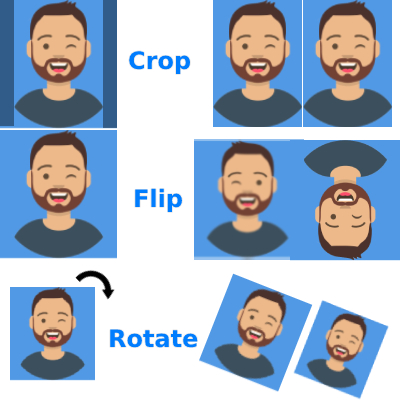
Keep the face centered inside the oval guide. For passport or exam-style photos, try to let the face fill roughly 70% of the crop height.
Mode
Zoom
Rotate 0°
Flip
W: — H: —
Add name & date caption Optional Required by exam
Text is placed below the image — not printed on it
As it should appear on the form
Date of birth or exam date
Preview — name & date strip appears below the image
Processing your image…
Resizing to exam specifications
Liên kết công cụ
Đã sao chép vào khay nhớ tạm.
Hãy giúp cải thiện công cụ này
177
Thời gian sử dụng
165
Tổng số người dùng
4+ năm
Đã phục vụ
Được rà soát lần cuối vào 2 tuần trước. Số liệu sử dụng được cập nhật trong các đợt kiểm toán định kỳ. (Bắt đầu báo cáo từ 21 Feb 2022)
Báo cáo sự không khớp

Đọc nội dung

Tìm hiểu cách thức hoạt động của công cụ này và khi nào nên sử dụng nó.

IPU CET photo and signature tool

This tool prepares a photo or signature for the IPU CET application. It crops to the selected IPU preset, converts the image to JPEG and compresses it toward the stored size window. The processed file downloads to your device.

The page uses a fixed IPU preset list, so you do not have to type dimensions. Pick photo or signature, upload the image and adjust the crop before processing.

Stored IPU presets

DocumentSizeFile sizeFormatDPI
Photo275×354 px50–500 KBJPEG96
Photo3.5×4.5 cm50–500 KBJPEG200
Signature275×118 px50–500 KBJPEG96
Signature3.5×1.5 cm50–500 KBJPEG200

These are the stored preset values. The IPU CET portal notice is the authority; confirm the current figure before uploading. The preset has not been changed.

How to use it

Select the IPU CET photo or signature preset, upload the original image and crop to the guide. Keep the face centred and leave a little space above the head. Process the image, download it and check its width, height and KB size before uploading.

For a signature, sign on plain white paper, photograph it straight on and crop around the strokes. A dark pen and even light produce a cleaner result than a faint scan.

Photo tips

Use a plain light background, a recent colour photo and no hat or filter. Avoid a screenshot of a photo, because it adds another compression pass. If the source is small, the resized result may look soft; start from a larger image when possible.

Official link

IPU official website

Pixel preset or centimetre preset?

The stored pixel preset and the stored centimetre preset describe the same document at different resolutions. Choose the one your notice names, not both. After processing, compare the downloaded width, height and KB size with the current IPU CET instruction before you upload.

Frequently Asked Questions

Câu hỏi thường gặp

Các câu trả lời ngắn gọn cho những thắc mắc mà người dùng thường đặt ra trước khi tin tưởng vào kết quả.

The stored presets are 275×354 px and 3.5×4.5 cm at 200 DPI.

The stored window is 50–500 KB. Confirm the current figure in the IPU CET notice.

275×118 px and 3.5×1.5 cm at 200 DPI, both JPEG.

Yes, if the face is clear and the background is plain. Avoid filters and screenshots.

It opens a crop view so you can centre the subject before the preset resize.

Check the current dimensions, KB limit and format in the IPU CET notice; the stored preset may differ.

Bình luận (0)

Dành cho các cuộc thảo luận của người dùng, các trường hợp ngoại lệ và các mẹo bổ sung.
Để lại bình luận
Bình luận của bạn sẽ được hiển thị công khai sau khi gửi.
Chưa có bình luận nào. Hãy là người đầu tiên bình luận!
Hãy cho chúng tôi biết!
Báo cáo sự cố liên quan đến công cụ này

Hãy mô tả vấn đề mà bạn gặp phải để chúng tôi có thể tìm hiểu và cải thiện công cụ này.

Điều gì hữu ích nhất
Vui lòng cung cấp thông tin về dữ liệu đầu vào, kết quả mong đợi, kết quả thực tế, trình duyệt/thiết bị và ảnh chụp màn hình (nếu có thể).
Nút chụp màn hình sẽ chụp lại trang web trong trình duyệt và đính kèm hình ảnh được tạo ra vào biểu mẫu này.
Ảnh chụp màn hình toàn trang
Được ghi lại trên trình duyệt của bạn bằng newisty.
Chưa có ảnh chụp màn hình nào được chụp.
Công cụ Báo cáo