
Compress photo size 100kb in pixels Online
Compress Photo Size 100KB in Pixels gives you crop, resize, format and quality controls to bring a photo toward 100 KB. There is no automatic target switch, so check the download and adjust.
Gebruik Compress photo size 100kb in pixels Online
Crop & Process Image
Inhoud lezen
What this page can and cannot do
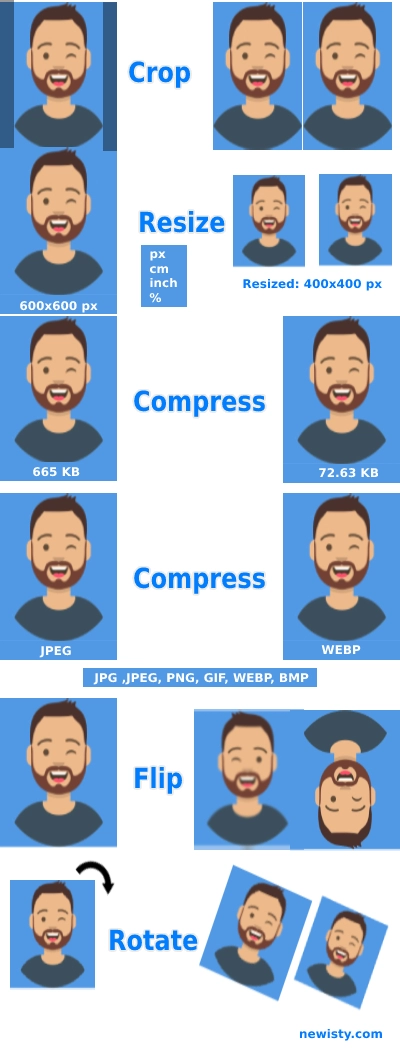
This page is a cropper, resizer, converter and compressor for one image at a time. You can crop freely, set a width and height, choose an output format and adjust quality. The upload limit is 100 MB.
The title mentions 100 KB, but the tool does not enforce an automatic 100 KB ceiling. There is no target-size switch in the current interface. You reach a target by choosing dimensions and quality, processing the file, checking the download size and repeating with smaller values if needed. That distinction matters: a page that promises an exact KB result without a target control would be misleading.
A practical route to about 100 KB
Start with a JPEG source if you have one. JPEG is designed for photographs and usually reaches a small size more easily than PNG. Crop away anything you do not need, then set the longest side to a modest size. A portrait or form photo often fits comfortably around 800 to 1200 pixels on the long edge; a detailed landscape may need more or less depending on the content.
Set quality around 70 to 80 for the first attempt. Process the image, download it and check the actual file size in your file manager. If it is far above 100 KB, reduce the dimensions first, then lower the quality. If it is far below and looks soft, raise the quality or keep more pixels.
There is no single dimension that guarantees 100 KB. A noisy photo, a detailed texture and a screenshot with text all compress differently. Treat the first result as a measurement, not a failure.
Cropping with a free ratio
The cropper is enabled by default with a free aspect ratio. Drag the box to the area you want, or use the handles to resize it. A free crop is useful for a form photo, a product image or a subject that is not centred.
Cropping changes what the viewer sees, not just the file size. Keep the important part inside the box and leave a little margin around a face or a document edge. A tight crop can look correct in the preview and awkward in the final form.
If you do not need to crop, you can process the whole image. The resize step still changes the pixel dimensions, so check the preview for stretching when the source ratio differs from the target.
Quality, format and dimensions
The default quality is 85 percent. For a 100 KB target, that may be too high for a large image. Lower it in small steps and compare the result; a drop from 85 to 75 is often visible only on close inspection, while a drop to 40 can look blocky.
JPEG is the usual choice for photos. PNG is better for graphics with sharp edges or transparency, but it is usually larger. WebP can be smaller for the web, but the destination must accept it. GIF and BMP are rarely the best choice for a size-limited upload.
Width and height are optional. If you leave them empty, the tool keeps the cropped dimensions and only re-encodes. Setting a smaller width and height is often the most effective way to reach a KB target without destroying detail.
Process and check
After processing, the page enables a download. Save the file and check its size before uploading it to the destination. Do not assume the on-screen preview reflects the final bytes; the preview can look fine while the file is still too large.
If the destination rejects the file, compare its stated limit with the downloaded size. A form may use a different definition of KB, count overhead or apply its own recompression. The form is the authority, not this page.
Limits and privacy
One image is processed per run. The upload limit is 100 MB, but a very large source can still be slow to crop or process. The final file is created on the server, so the image leaves your device.
Do not upload identity documents, signatures or confidential client images to a public tool unless you are comfortable with that. The page does not offer a local-only export and does not keep a gallery of results.
Forms that ask for 100 KB
A form that says 100 KB may mean 100,000 bytes or 102,400 bytes, and some portals reject a file that is even slightly over. Check the downloaded size in bytes, not the rounded number shown by a file browser. If the limit is strict, leave a small margin below it.
The form is the authority for its own limit. This page helps you reach a size, but it does not read the destination's rules and does not guarantee acceptance. If the form also specifies pixels, DPI or format, satisfy those first, then adjust quality.
Checking the result
On Windows, open the file properties; on macOS, use Get Info; on a phone, a file manager or a share sheet usually shows the size. Compare the number with the form's limit and re-process if it is over.
Do not judge by the preview alone. A compressed photo can look acceptable on a phone screen and still be 300 KB. The byte count is the only number the upload form sees.
Common mistakes
Lowering quality to the minimum before trying a smaller pixel size, converting a PNG photo instead of using JPEG, and cropping so tightly that the subject is cut. Start with dimensions, then quality, and keep a margin around the important part of the image.
Another mistake is overwriting the original with the compressed copy. Keep the original so you can make a better attempt without rescanning or re-downloading it.
A note on visual quality
Do not chase the exact byte count at the expense of the image. Lowering quality until the file fits can leave visible blocks around a face, text or a sharp edge. A slightly smaller pixel size at a moderate quality often looks better than a large image crushed to the minimum.
Compare the result at 100 percent, not only in a small preview. If the destination will display the photo small, some softness is acceptable; if it will be printed or zoomed, keep more pixels and accept a larger file if the limit allows.
How the cropper looks
The screenshot shows the crop box and handles used before processing. The output depends on the dimensions and quality you choose after cropping.
Frequently Asked Questions
Veelgestelde vragen
Reacties (0)
Beschrijf het probleem dat u bent tegengekomen, zodat we dit kunnen onderzoeken en de tool kunnen verbeteren.