
Text Finder and Replacer
Do you need to change a word or phrase in many documents at once? Doing this by hand can be slow and boring. But there is a better way. Meet Newisty Text Finder and Replacer tool, an online tool that lets you search and replace any text in your documents fast. You can also highlight the text you want to change. It works for case-sensitive and non-case-sensitive changes, and for any document format.
Newisty Text Finder and Replacer tool is great for both individuals and businesses who want to save time and improve their workflow. Just paste your file content, enter the text you want to find and replace, and click the button. It’s that easy! Try Newisty Text Finder and Replacer tool today and see how it can help you. It’s the best way to find and replace text online.
Gebruik Text Finder and Replacer
Inhoud lezen
Table of Contents
[hide]
Text Finder and Replacer
Newisty Text Finder and Replacer is a tool where you can find a text that you want with a highlighter and also you can replace a word. We support case-sensitive mode and non-case-sensitive mode.
Newisty Text Finder and Replacer tool is online tool that allows users to search for specific text within a document or group of documents with a highlighter and replace it with new text. This can be useful for making bulk changes to a large number of documents, such as updating the name of a company or replacing a broken link.
Newisty text finder and replacer tools also have additional features, You can search and replace in case-sensitive mode and non-case-sensitive mode. This tool can be useful for both individuals and businesses to save time and streamline their workflow.
Find Text in Online
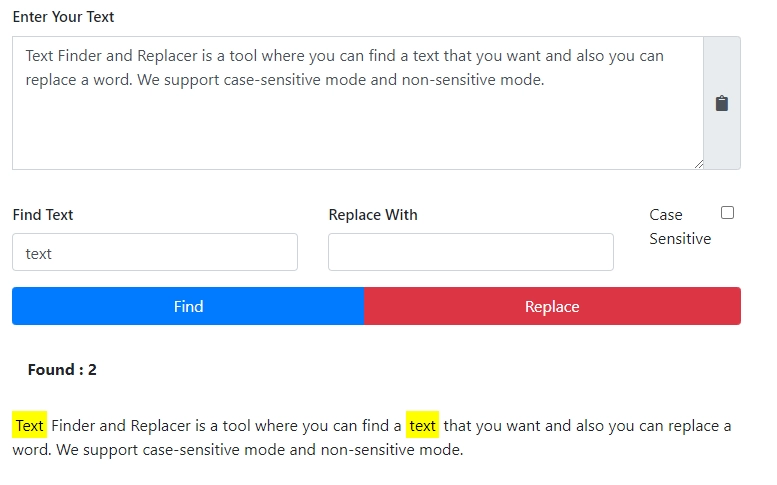
By using this tool you can find a letter, word or sentence. We will highlight the word if we found.
Non Case-Sensitive
By default, it is in non-case-sensitive mode. That means it will not follow the case-sensitive rule. More easily, it will not compare upper case or lower case.
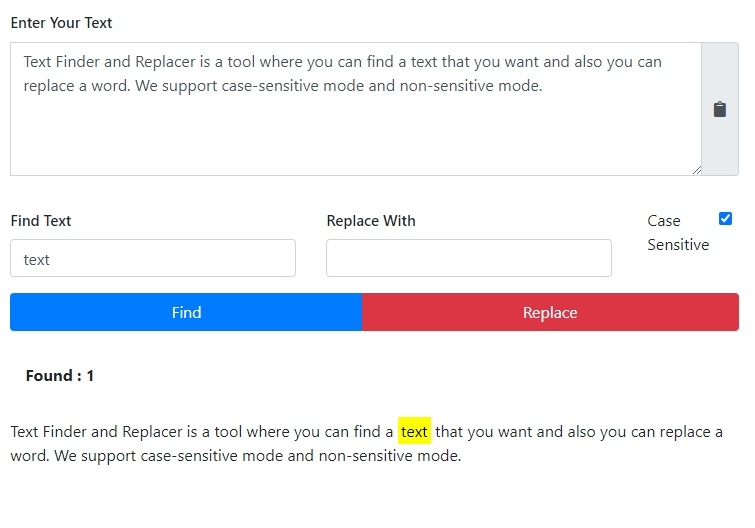
Case-Sensitive
If you select case-sensitive mode. That means it will follow the case-sensitive rule, and will compare upper case or lower case.
Replace Text in Online
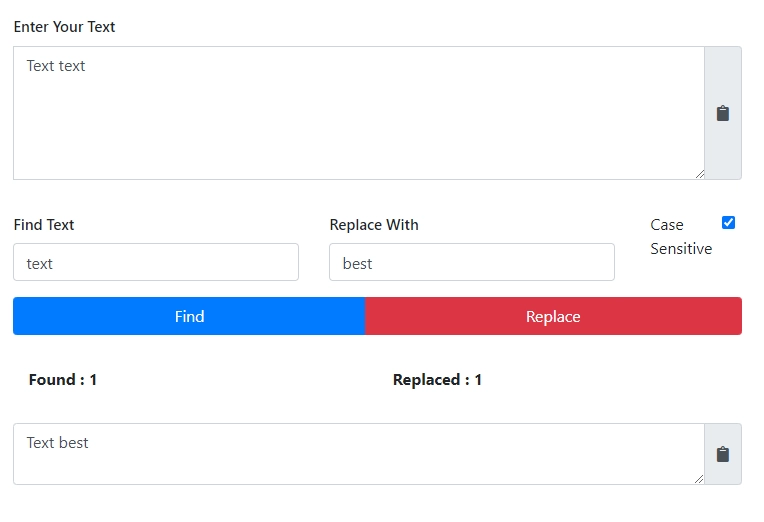
By using this tool you can find a letter, word or sentence and replace it. It has Case-Sensitive and Case-Sensitive.
Non Case-Sensitive
By default, it is in non-case-sensitive mode. That means it will not follow the case-sensitive rule. More easily, it will not compare upper case or lower case.

Case-Sensitive
If you select case-sensitive mode. That means it will follow the case-sensitive rule, and will compare upper case or lower case.
Why Newisty Text Finder and Replacer:
- First of all Newisty Text Finder and Replacer is simple, easy to use but advance
- We support Non-Case-Sensitive and Case-Sensitive, which is an advanced option. Many web tools do not support this feature.
- We highlight the letter, word, or sentence in the yellow background if we find it, by highlighting it's made easy to find and understand if the letter, word, or sentence exists.
- We have a hassle-free one-click copy and paste button. No need to hold and press to copy or paste, just one click to copy or paste
Reacties (0)
Beschrijf het probleem dat u bent tegengekomen, zodat we dit kunnen onderzoeken en de tool kunnen verbeteren.