
1280x720 Pixel Image Cropper and Editor
Use this free 1280 x 720 pixel cropper to frame an image at 16:9 and resize it to exactly 1280 pixels wide by 720 pixels tall. Upload one image, adjust the crop, choose the output quality, and download the result. It is built for thumbnails, HD video frames, slides and widescreen banners.
使用 1280x720 Pixel Image Cropper and Editor
1280×720 Pixel Photo Cropper and Editor
阅读内容
What this 1280 x 720 pixel cropper does
The tool takes one image, lets you crop it to a 16:9 frame, resizes the result to exactly 1280 pixels wide and 720 pixels tall, and gives you a download. Cropping is optional, but keeping it on is the simplest way to guarantee the 16:9 shape before the pixels are recalculated. The quality control starts at 95, which is high enough for screen use without producing an unnecessarily heavy file.
There is nothing to install and no account to create. One upload, one crop, one processed file.
What 1280 x 720 means
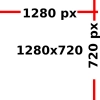
1280 x 720 describes an image that is 1280 pixels across and 720 pixels down. Divide one by the other and you get 1.777, which is the 16:9 widescreen ratio. The frame contains 921,600 pixels, usually rounded to 0.92 megapixels, and the format is commonly called 720p or HD.
Those two facts are connected but not interchangeable. A 1280 x 720 image is always 16:9, but a 16:9 image is not always 1280 x 720: 1920 x 1080, 2560 x 1440 and 3840 x 2160 are all 16:9 at higher pixel counts. This tool fixes the pixel count as well as the shape, which is the point when a platform or a document asks for that exact number.
Where a 1280 x 720 image is used
The size is most familiar as a video frame and a thumbnail. Video platforms and editors use it as the 720p canvas, presentation software treats it as a widescreen slide, and many website headers, email banners and social cards are designed around a 16:9 box. Because it is a standard shape, a crop made here also fits other 16:9 slots, even when they ask for more pixels.
It is not an exam photograph size. If you arrived looking for a passport or application photo, this is the wrong tool; portrait boxes are taller than they are wide, while this frame is wider than it is tall.
How to crop and resize an image to 1280 x 720
- Upload the largest version of the image you have. A high-resolution source gives the crop more room to work with.
- Leave the crop enabled and drag the frame over the part you want to keep. The frame is locked to 16:9, so it will not distort the subject.
- Check the preview before processing. Faces, text and important objects should sit inside the frame with a margin around them.
- Confirm the width is 1280 and the height is 720. Changing one without the other breaks the 16:9 ratio.
- Adjust the quality slider if you need a lighter file. Leave it near the default when quality matters more than weight.
- Process the image and download the result.
- Open the saved file and check that its dimensions are exactly 1280 x 720.
Crop versus resize: why order matters
Cropping removes pixels from the edges. Resizing recalculates the whole image to a new pixel count. If you resize a square photo to 1280 x 720 without cropping, the image is stretched horizontally: faces widen, circles become ovals, and text looks off. If you crop first, the frame keeps the original proportions and the resize only changes the scale.
The order the tool uses is deliberate: crop to 16:9, then resize to the target. Doing it the other way round wastes pixels and can leave visible softness, because the resize has already thrown away detail before the crop decides what is needed.
Framing a 16:9 crop
Widescreen frames are forgiving horizontally and tight vertically. A portrait photo taken on a phone loses a large part of its top and bottom when forced into 16:9, so the subject usually has to be chosen before the crop rather than after. Put the face or the main object slightly off-centre and leave space in the direction the subject is looking or moving; that reads better than a perfectly centred frame.
Keep important content away from the outer edges. Some platforms overlay buttons, captions or a duration badge on thumbnails and players, and those elements can cover an edge that looked fine in the editor. A margin of roughly five percent on each side is a simple habit that keeps text and faces clear.
Sharpness and screen size
1280 x 720 is sharp at its native size and on a 720p display. Shown full-screen on a 1080p monitor, it is enlarged by about 1.5 times, which softens fine detail. On a 4K screen the enlargement is larger still. That is not a fault in the file: it is the natural result of displaying fewer pixels than the screen has.
Upscaling does not solve this. Enlarging a 1280 x 720 image to 1920 x 1080 adds pixels but no new detail, so the result is softer than a native 1080p image and heavier than the original. If the final use is a large screen, start from a larger source and crop to 16:9 without reducing it this far.
| Format | Pixel size | Ratio | Relative to 720p |
|---|---|---|---|
| 720p | 1280 x 720 | 16:9 | 1x |
| 1080p | 1920 x 1080 | 16:9 | 2.25x the pixels |
| 1440p | 2560 x 1440 | 16:9 | 4x the pixels |
| 4K UHD | 3840 x 2160 | 16:9 | 9x the pixels |
File weight and quality
Pixel count and file weight are related but separate. A 1280 x 720 image can be a few dozen kilobytes or several megabytes depending on how much detail it holds and how aggressively it is compressed. The quality control in the tool decides how much compression is applied on export: higher settings keep more detail and produce larger files, lower settings do the opposite.
If a platform publishes a maximum weight, use that number rather than guessing. Drop the quality in small steps and compare the result at full size; the point where compression becomes visible depends on the image, and a busy photograph shows it sooner than a flat graphic.
Common mistakes
- Stretching a non-16:9 photo. Cropping first avoids the widened faces and flattened circles that come from resizing alone.
- Cutting off the subject's head. Portrait sources need the crop moved down before the frame is accepted.
- Putting text at the very edge. Player controls and platform overlays can cover it.
- Upscaling a small image instead of starting again. A larger original always beats an enlarged copy.
- Assuming every 16:9 request wants 1280 x 720. Check the exact numbers; the shape can be right while the pixel count is too low.
Limitations
The tool handles one image at a time and works on the image you upload; it does not fetch a frame from a video, remove a background, or add captions. It crops and resizes, which means anything outside the frame is discarded, and it cannot recover detail that was never in the source. Output format and any weight ceiling imposed by a platform are outside its control, so check the downloaded file against the destination's current instructions before publishing.
Frequently Asked Questions
常见问题解答
Suggested Tools






评论 (0)
请描述您遇到的问题,以便我们进行调查并改进该工具。