
Image Resizer, Converter and Compressor
Using this free online Image Resizer, Converter and Compressor you can resize images in pixels, percent, inches, centimeters and millimeters, convert them between JPG, JPEG, PNG, GIF, WebP, BMP, JFIF and JIFF, compress them to a smaller file size with a quality slider, and set the DPI value used for printing. Work on one image or on a whole batch: drop your files, or paste a list of image URLs, process everything in one click, then download each result or copy it as Base64.
Crop, rotate, flip, and zoom your image to remove unwanted parts. Image Cropper and Resizer
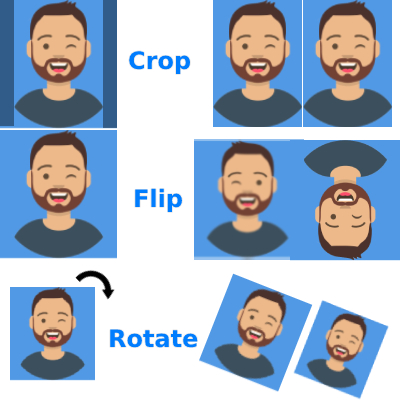
Crop images And then Resize Here
वापर करा Image Resizer, Converter and Compressor
संरचना
प्रतिमा निवडा
सामग्री वाचा
What is the Image Resizer, Converter and Compressor?
This is a free online image resizer, image converter, and image compressor that works in your browser. You can shrink an image to an exact size, change its format, compress it until it fits an upload limit, or set the DPI value a print shop asks for. It handles a single image or a whole batch, and it runs without an account, without an install, and without a watermark.
Everything happens in three places inside the tool: the settings panel where you choose the format, quality, resize unit, DPI, and dimensions, the file queue where you add images from your device or from a list of URLs, and the result cards where you see the new file size, the new dimensions, the DPI, the format, and the buttons to download or copy the result.
Features of this tool
- Batch queue: select or drag many images at once. A counter shows how many files are selected, and each item has its own progress bar, status, process button, and remove button.
- Process All: one button processes every pending image with the same settings, and a counter shows how many files are still waiting.
- From URL: paste image URLs, one per line, and press Process to queue remote images without downloading them to your computer first.
- Convert Format: JPG, JPEG, PNG, GIF, WEBP, BMP, JFIF, and JIFF, plus Keep Original to leave the format alone. SVG can be uploaded, but SVG is not an output format.
- Quality slider, 10 to 100 percent: the default is 75 percent. Higher values keep more detail and produce larger files, lower values compress harder.
- Resize Unit: No Resize, Pixel, Percent, Inch, Centimeter, or Millimeter, so you can think in the unit that matches the job.
- Dimensions: a width and a height box that appear when a resize unit is active, with the unit shown next to the result.
- DPI: type the print resolution you need, for example 96 for screen work or 300 for print.
- Result cards: a thumbnail, the output file size with the percentage saved, the final width and height with unit, the DPI badge when set, and the format badge.
- Download and Copy Base64: save the processed image as a file, or copy it as a Base64 data string for HTML, CSS, or API payloads.
- Preview lightbox: click any thumbnail to open a full-size preview, then click outside to close it.
- Clear all: empty the queue in one click when you start a new batch.
- Works on every device: Windows, Mac, Linux, Android, and iOS, with nothing to install.
How to resize an image
- Open the tool and upload one image, or drag a group of images into the upload area.
- Open the settings panel if it is collapsed.
- Set Convert Format to Keep Original, or choose the format you need.
- Leave Quality at 75 percent for normal use, or lower it when you need a smaller file.
- In Resize Unit, choose the unit you want to work in: Pixel, Percent, Inch, Centimeter, or Millimeter.
- Enter the Width and the Height. Leave one of them empty to keep that side proportional where the tool allows it.
- Type the DPI if the image is going to print, for example 300.
- Press Process All, or use the process button on a single item.
- Check the result card. It shows the new size, the saving percentage, the dimensions, the DPI, and the format.
- Press Download, or Copy Base64 when you need the data as text.
How to compress an image without resizing it
- Upload the image or the batch.
- Set Resize Unit to No Resize so the pixel dimensions stay exactly the same.
- Leave Convert Format on Keep Original, or pick a format with better compression such as WebP when the destination accepts it.
- Move the Quality slider. Around 75 percent is a safe default, 60 percent is noticeably smaller, and 40 percent or below is only for thumbnails.
- Press Process All and read the saving percentage on each result card.
- If a file grew instead of shrinking, lower the quality a little more or keep the original format.
How to convert an image format
- Upload the image.
- Set Convert Format to JPG, JPEG, PNG, GIF, WEBP, BMP, JFIF, or JIFF.
- Set Resize Unit to No Resize unless you also want a new size.
- Adjust Quality. PNG and BMP are lossless, so the quality value matters less for those two formats.
- Press Process All and download the converted file. The file name and the format badge both show the new format.
How to change image DPI
- Upload the image.
- Set Resize Unit to No Resize if you only want to change the resolution hint.
- Type the DPI value, for example 96 for a screen image or 300 for print.
- Press Process All. The result card shows the DPI badge next to the file size.
- Remember that DPI does not add detail. For a sharp print, resize the image to the required pixel size as well.
Which unit should I resize in?
- Pixel: the right unit for web uploads, form submissions, and anything where a site asks for a pixel size.
- Percent: handy for shrinking an image to half size, or to 25 percent for a thumbnail, without calculating pixels.
- Inch and Centimeter: useful for print jobs where a size in physical units is quoted, such as a 3.5 x 4.5 cm photo.
- Millimeter: the same idea in millimetres, for specifications written that way.
Compress, resize, or convert: which one do I need?
- The site rejects the file because it is too heavy: compress it. Leave Resize Unit on No Resize, lower Quality, and check the saving percentage.
- The site rejects the file because the dimensions are wrong: resize it with Pixel, and keep the format as required by the form.
- The portal only accepts one extension: convert it, for example PNG to JPG, and keep the pixel dimensions the same.
- A print shop asks for 300 DPI: set DPI to 300 and resize the image to the physical size they quoted, so the print is sharp instead of pixelated.
- Everything at once: convert, compress, and resize in a single pass with the same settings applied to the whole batch.
Tips for the best results
- Work on a copy of your original file. Every download replaces your file on disk if you use the same name.
- Use PNG for screenshots, flat graphics, and images with transparency. Use JPG or WebP for photographs.
- Do not enlarge an image far beyond its original size. The tool can scale up, but the result will look soft, because no new detail is created.
- For a batch, set the settings once and use Process All. Do not process files one by one with different values by accident.
- Read the result card before downloading. It tells you the exact size, the dimensions, the DPI, and the format you are about to save.
- Use the Image Width and Height Validator when a form rejects a file, so you can confirm the dimensions the portal expects.
Limitations and privacy
- Compression and conversion work on JPG, JPEG, PNG, GIF, WEBP, BMP, JFIF, and JIFF. SVG can be uploaded, but it is not produced as an output format.
- DPI is a stored print hint. Changing it cannot restore detail that a small image does not contain.
- Transparent areas are preserved in PNG output. Converting a transparent PNG to JPG replaces transparency with a solid background, because JPG has no alpha channel.
- Animated GIF behaviour depends on the source file, and a still image is the safe choice when the destination expects a photo.
- Your images are processed for your request so the tool can produce the download or the Base64 value. No gallery of your images is kept, no account is needed, and no email is requested.
- Tooling cannot fix a blurry scan. Start from the best original you have.
Original page example

Frequently Asked Questions
वारंवार विचारले जाणारे प्रश्न
टिप्पण्या (0)
आपण अनुभवलेल्या समस्येचे वर्णन करा, जेणेकरून आम्ही तपासणी करून साधन सुधारू शकू.